Elizabeth Rennie
K-5 UI Platform Redesign
User Experience, Design System, UI Testing, Systems Thinking
Overview
This project focused on redesigning the student interface for Math programs in grades K–5. The goal was to create an age-appropriate UI that supports early learners’ cognitive needs while aligning with classroom goals and minimizing friction for both teachers and students.
I led the end-to-end design system creation and UI redesign for the K–5 platform, collaborating with researchers to define developmental needs and with engineers to implement a scalable, maintainable system architecture. My work included designing responsive components, refining interaction patterns, and iterating high-fidelity mockups informed by usability testing. The project was completed over a focused 6-week timeline, with iterative reviews and stakeholder alignment throughout.

💡 This work is part of an ongoing platform redesign.
Final implementation, development, and results are still in progress with more insights coming soon.
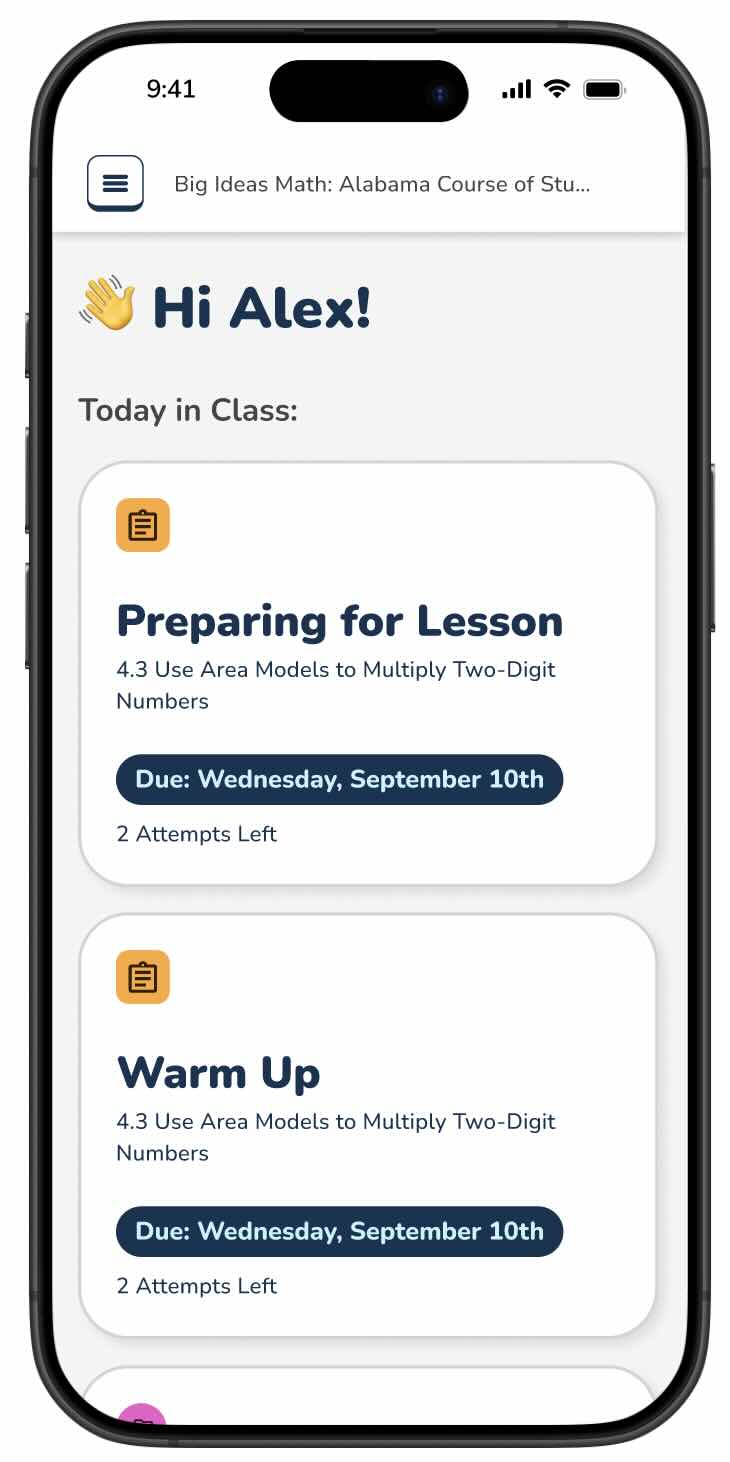
Mobile view of Dashboard
🎯 Tasks & Goals
Teacher
- Align navigation and task flow with classroom routines
- Reduce friction in assigning and reviewing student work
- Create consistency in language and layout across activities
- Develop a scalable design system to streamline future dev work
Student
-
Design a UI that supports learners across K–5
-
Improve clarity and task independence
-
Use visual design to engage without distraction
-
Ensure accessibility across devices and ability levels
🎨 Design Deliverables
Project Timeline: 6 weeks
- K5 Design System
- High-fidelity mockups and prototypes
- Responsive views (Desktop, Tablet & Mobile)
- Usability tests and findings
🤝 Stakeholders & Collaboration
- Product Leadership
- Product Managers
- Instructional Designers
- Technical Product Managers
- Enterprise Architect
- Development Teams
- User Experience Researchers
💼 Business Need
The platform’s outdated UI created friction for teachers and students alike. Designed with a one-size-fits-all approach, the interface failed to accommodate the developmental diversity of K–5 learners or the evolving instructional needs of modern classrooms. This led to a fragmented user experience: confusing navigation, inconsistent visual cues, and limited accessibility features, contributing to lower adoption rates and increased support burden.
Teachers struggled to guide students through daily tasks, and students found it difficult to engage independently. This inefficiency impacted classroom time, undermined learning outcomes, and created misalignment between product goals and real-world instructional use.
Problem Statement
“How might we redesign the platform to provide an engaging, developmentally appropriate experience for K–5 learners that reduces classroom friction, supports independence, and enables scalable design implementation across future product needs?”
🧩 Design Context & Constraints
This redesign was intended to complement the new 6–12 student experience, which features a more advanced dashboard and content hierarchy. The K–5 interface was intentionally simplified to support younger users’ developmental needs while maintaining platform alignment and continuity across the broader product ecosystem.
User Characteristics
- Ages range from 4–11 years old, with rapidly evolving cognitive and motor skills
- Many early learners cannot read or have limited vocabulary
- Students are still learning numbers, dates, and standard interface patterns
- Easily distracted by cluttered visuals or complex navigation
Classroom Environment
- The platform needed to minimize teacher intervention, allowing students to navigate tasks independently while teachers managed large groups
- Designed for shared devices with limited tech support, requiring intuitive and resilient UI flows
Accessibility & Interaction Constraints
- Chromebook and iPad users, touch screen
- Drag-and-drop interactions were avoided for younger students due to limited fine motor skills
- Tap targets were optimized for small hands and imprecise touch input
- UI elements were simplified to reduce cognitive load and support non-readers
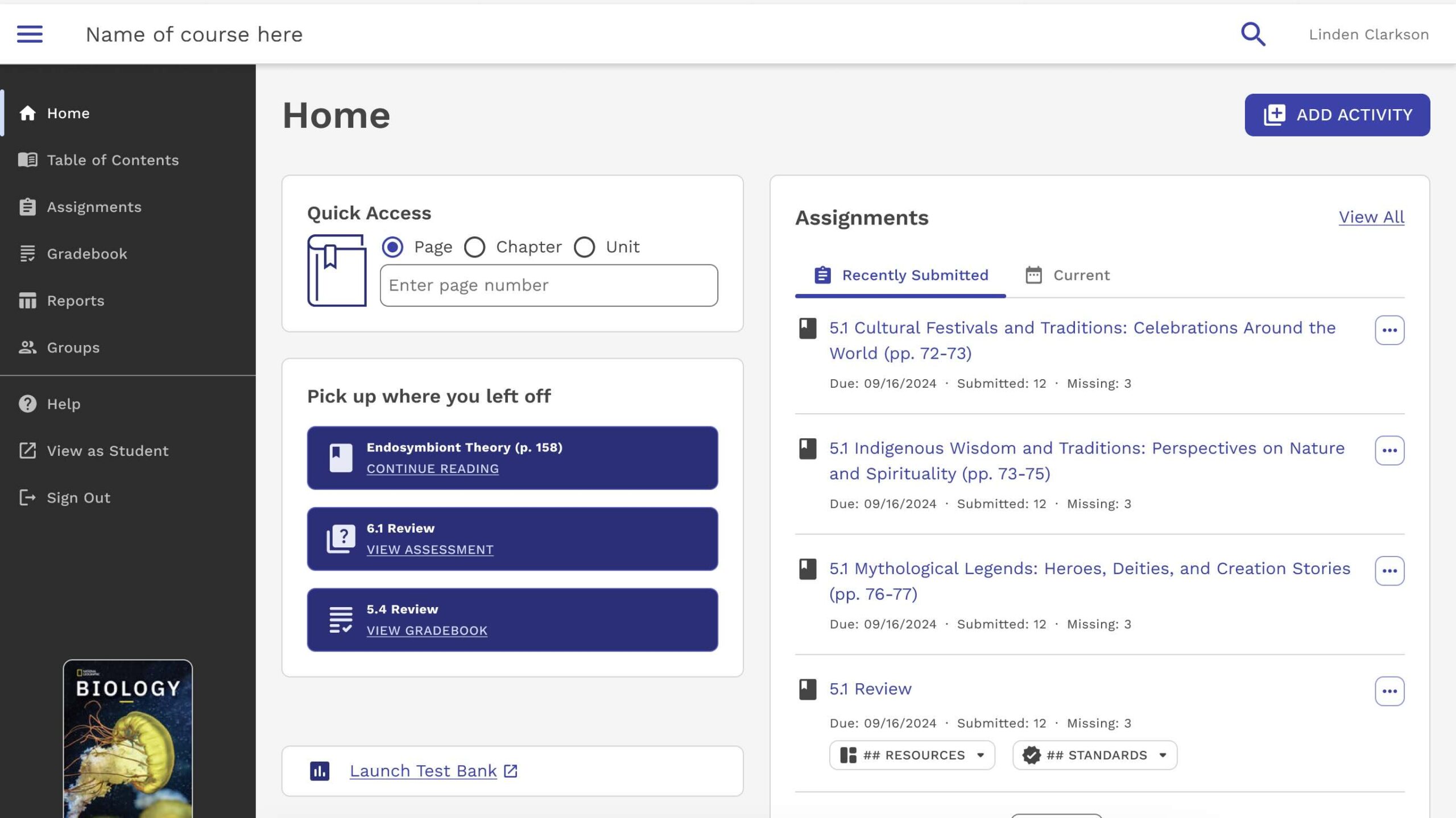
6th – 12th Grade Dashboard
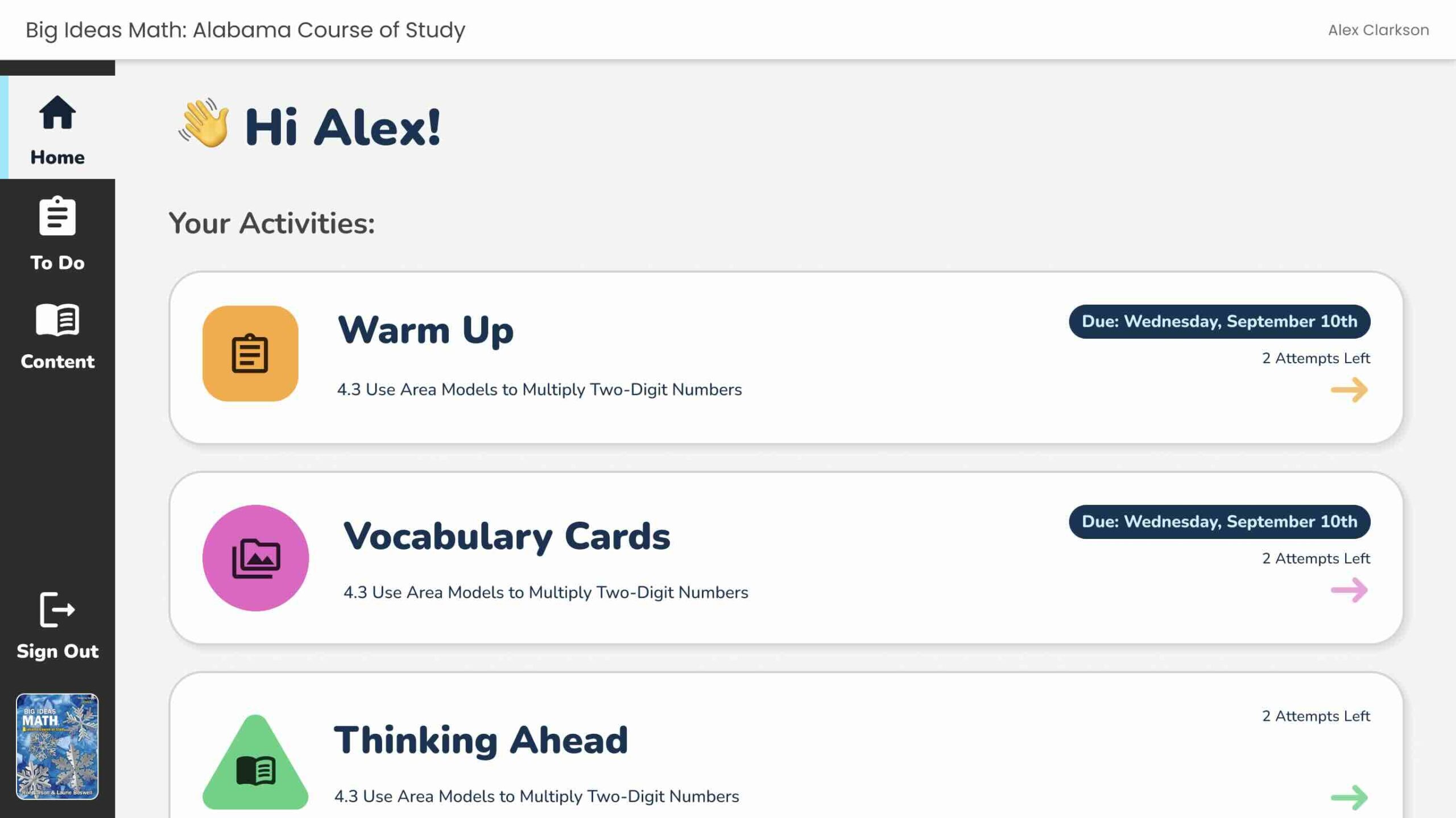
K–5th Grade Dashboard
🎨 Design System
This design system ensured consistency, scalability, and future-ready handoff across platform UI. Built using atomic design principles, it included a modular structure for color, typography, layout spacing, and component behavior.
Foundations
Color, spacing, and type were defined for brand consistency and accessibility (WCAG AA).
Components
Reusable components were built in Figma using variants and constraints, enabling responsive design and efficient iteration.
System Thinking
Elements were mapped across use cases (K–5 learner interfaces, assessments, navigation flows), supporting flexibility without visual fragmentation.
Foundations
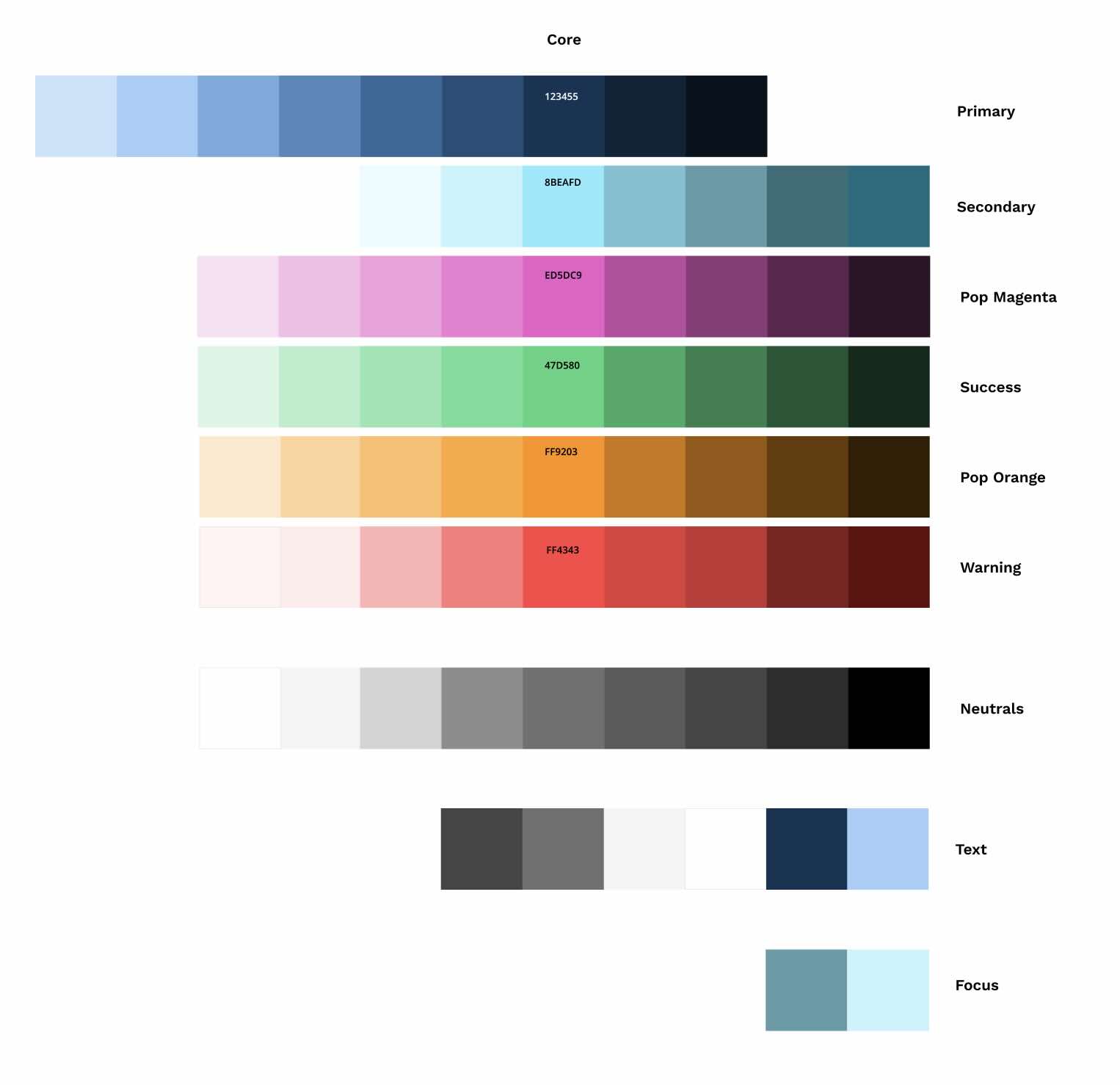
🌈 Color Palette
The color palette was designed to balance fun and functionality for the diverse age range. The goal was to create a system that felt vibrant and inviting without overwhelming the user interface. Each color was carefully selected to maintain legibility, support accessibility, and feel agnostic across age groups, gender, and classroom environments.
✏️ Typography
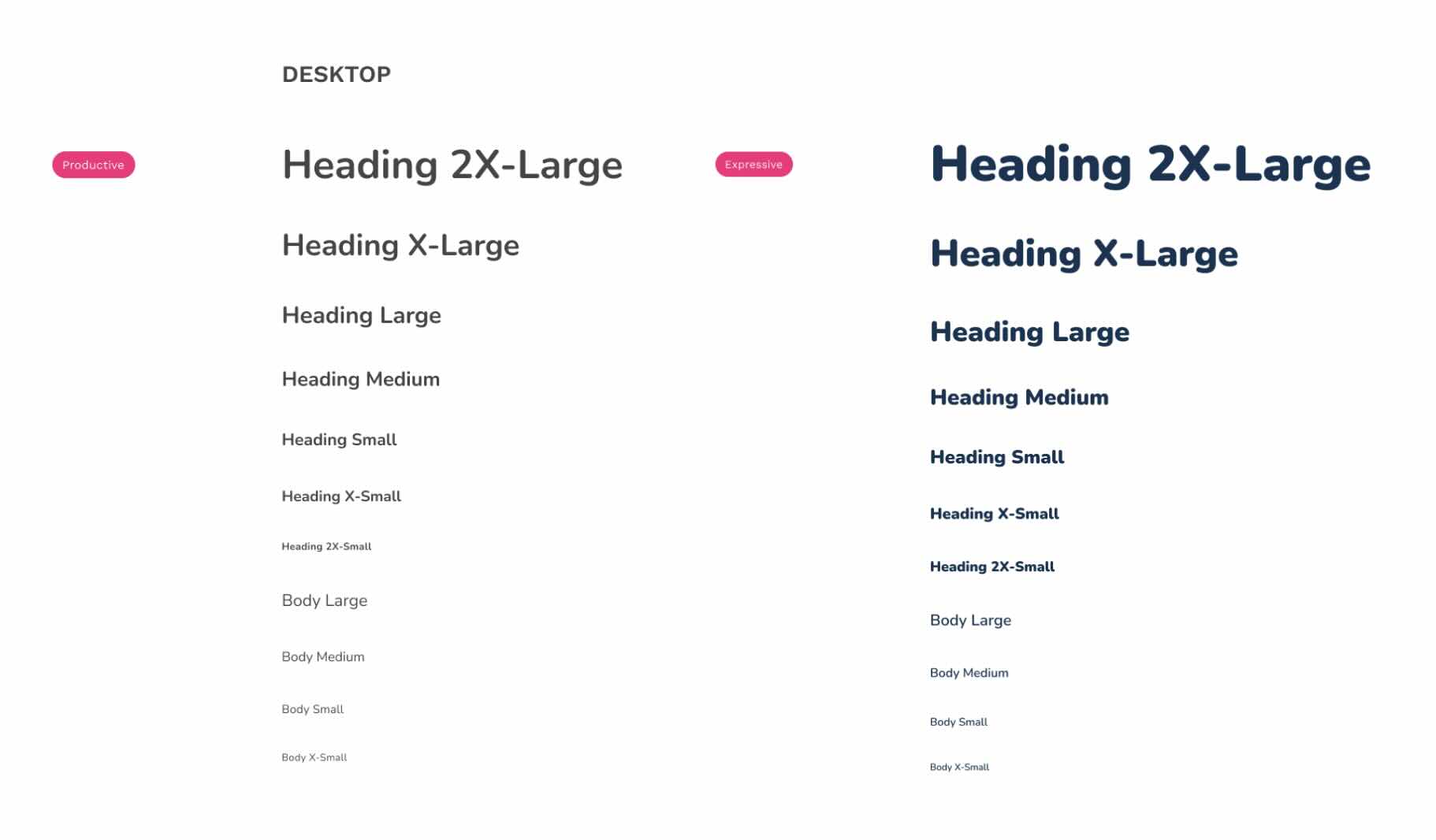
The typography system strikes a balance between playfulness and clarity, supporting legibility across a wide age range.
Two typefaces were used:
-
Expressive for headers and large text: a rounded, bubbly style that adds energy and helps young learners quickly scan for meaning.
-
Productive for body copy and tasks: a clean, neutral typeface optimized for readability and minimal distraction.
Together, they create a system that feels youthful but structured, aligned with the visual language, and adaptable across devices.
Component Library
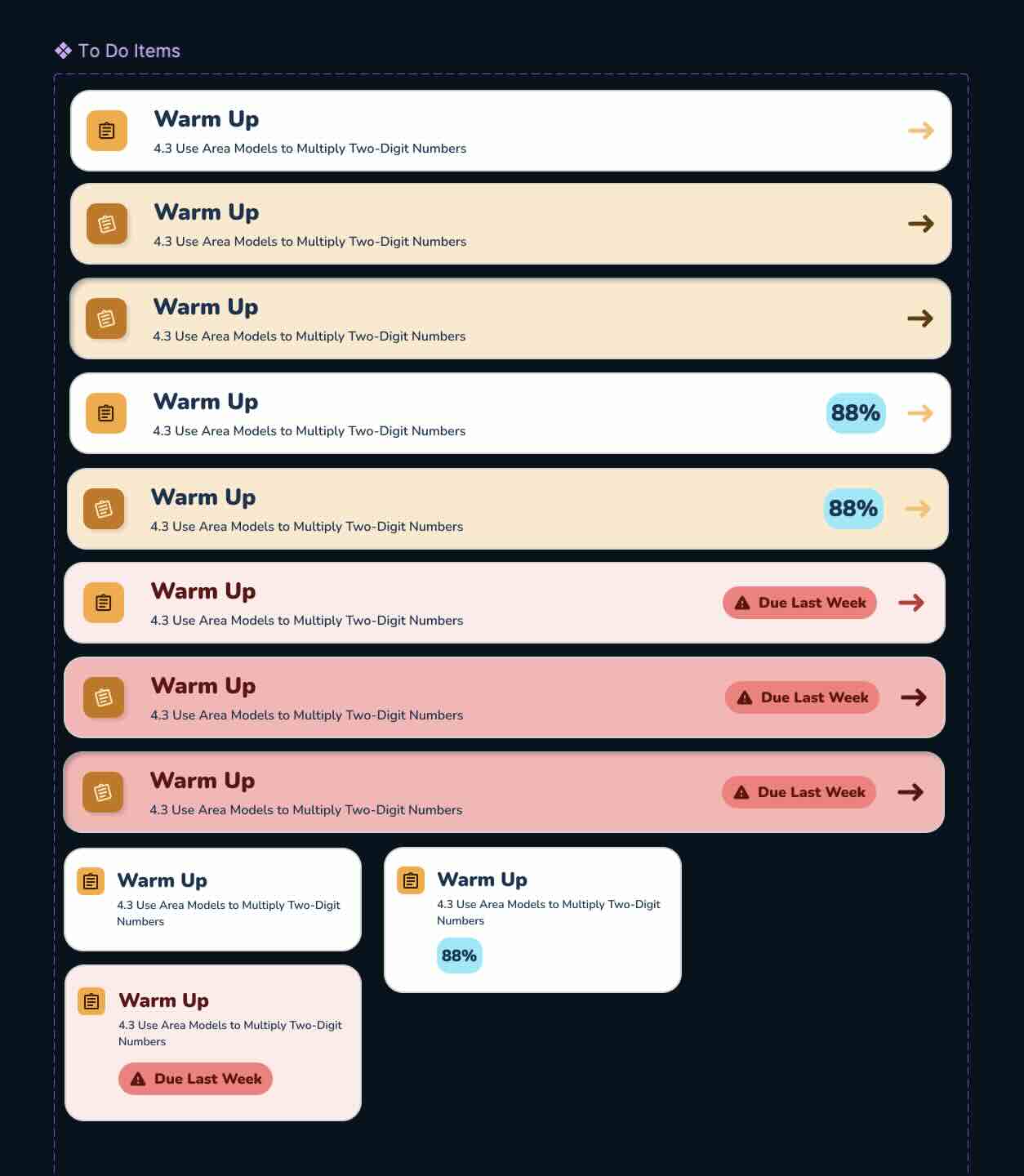
The design system included a full library of reusable components built directly in Figma, using variants, constraints, and responsive behavior to support consistency across the K–5 experience. Core elements included:
-
Activity Cards with dynamic icons, colors, and statuses (e.g. due dates, completion, missing work)
-
Navigation & Tabs built for both desktop and touch devices
-
Buttons & Controls supporting large tap targets and simple interaction patterns
-
Progress Badges & Labels for visual reinforcement of student progress
-
Supporting Elements such as numeric input, pagination, and instructional badges
Every component was structured to maintain accessibility standards, minimize cognitive load, and support responsive behavior across screen sizes (desktop, tablet, mobile).
🖼️ High Fidelity
Home Page Dashboard
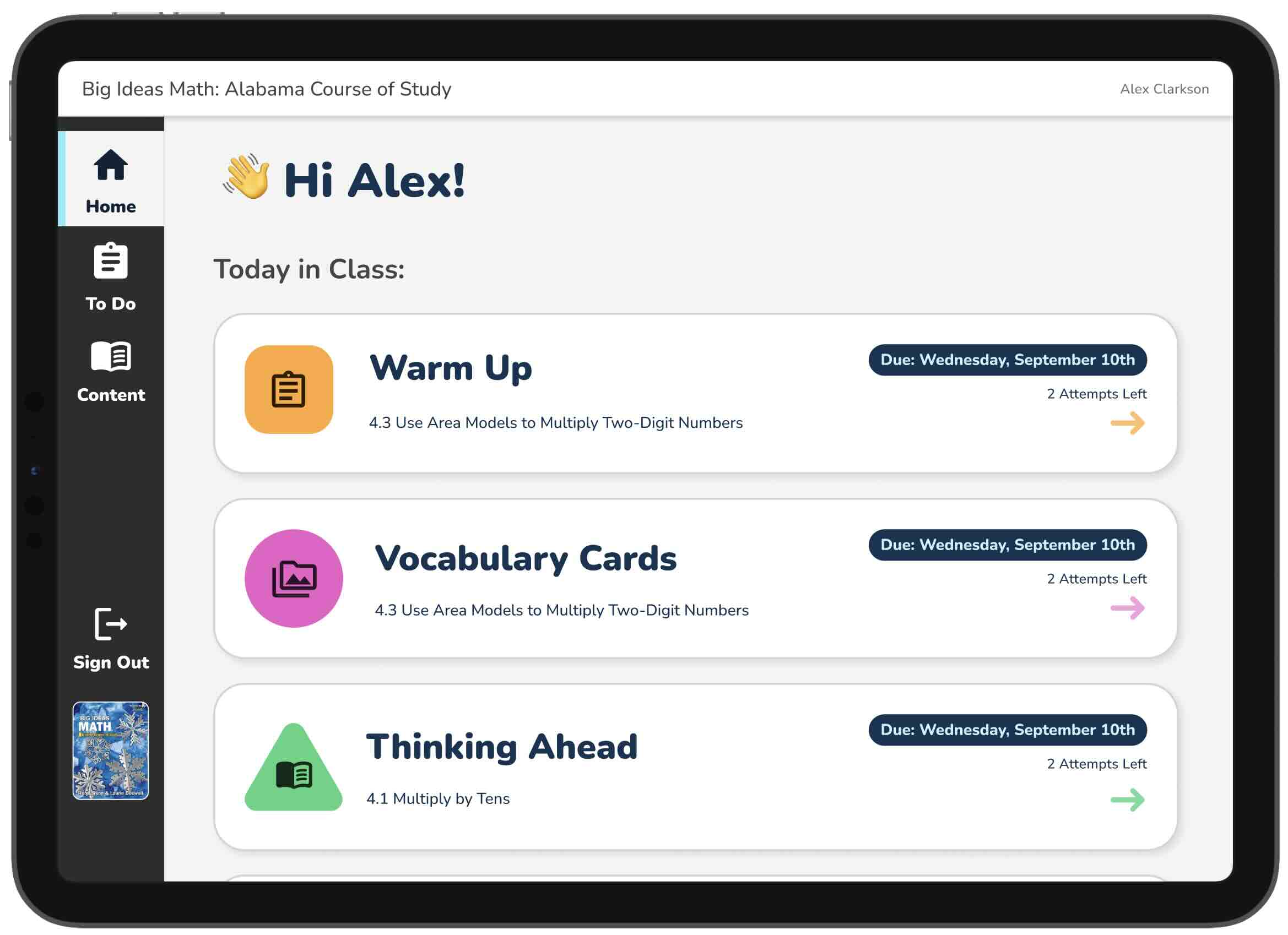
Designed to simplify navigation for K–5 students by showing only today’s activities in a clear, stacked layout. Each activity uses a color-coded icon (e.g., pink circle = media) so teachers can guide students with simple verbal cues — minimizing reliance on reading.
To reduce cognitive load, the design:
-
Focuses on one day at a time
-
Uses consistent color/icon cues
-
Supports touch with large, stacked cards
-
Avoids dropdowns and complex menus
⚖️ Technical Constraints
- Activity metadata, such as parent folder, had to remain displayed, though it may be too text-heavy for some users.
- Due dates need to be visible for MVP
Activity
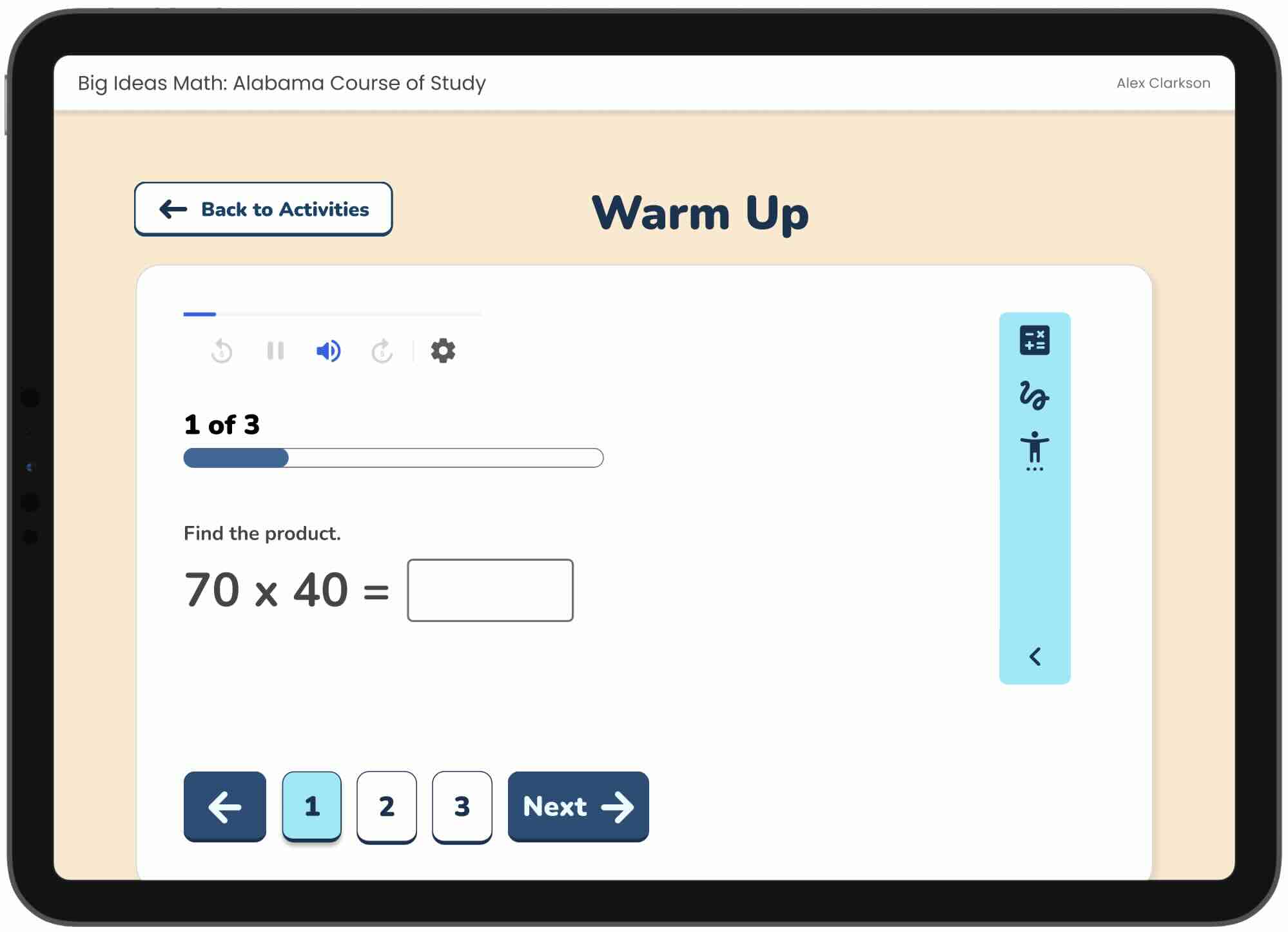
The Activity Page offers a focused, distraction-free space for K–5 students to complete tasks. Background colors match activity types from the Home Page, reinforcing visual cues.
To reduce cognitive load, the design:
-
Removes global navigation
-
Uses large, simple pagination
-
Reinforces task type with background color
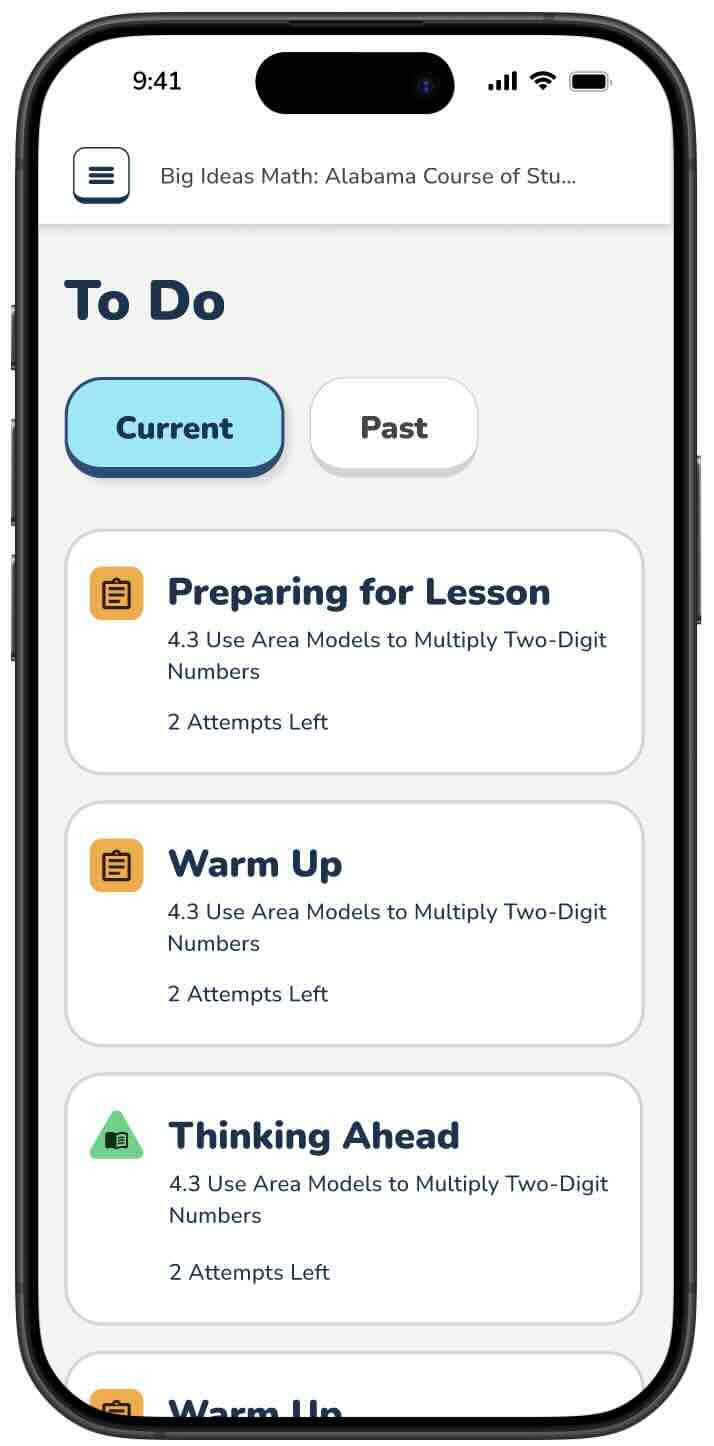
To-Do
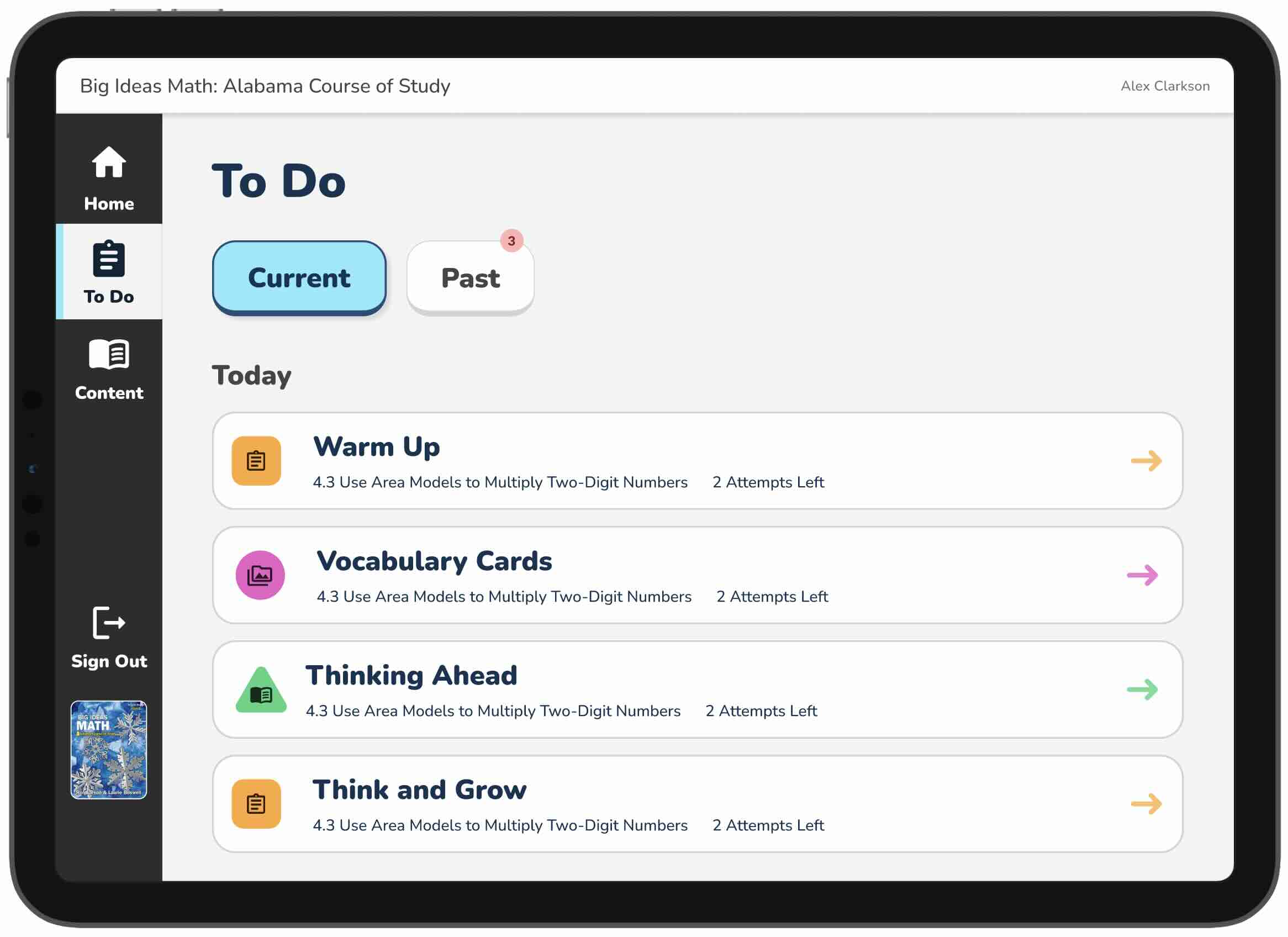
Expands on the Home dashboard by displaying a comprehensive, organized list of activities students can complete, not just for today. Tasks are grouped by timeframes (Today, This Week, Next Week) for easy prioritization.
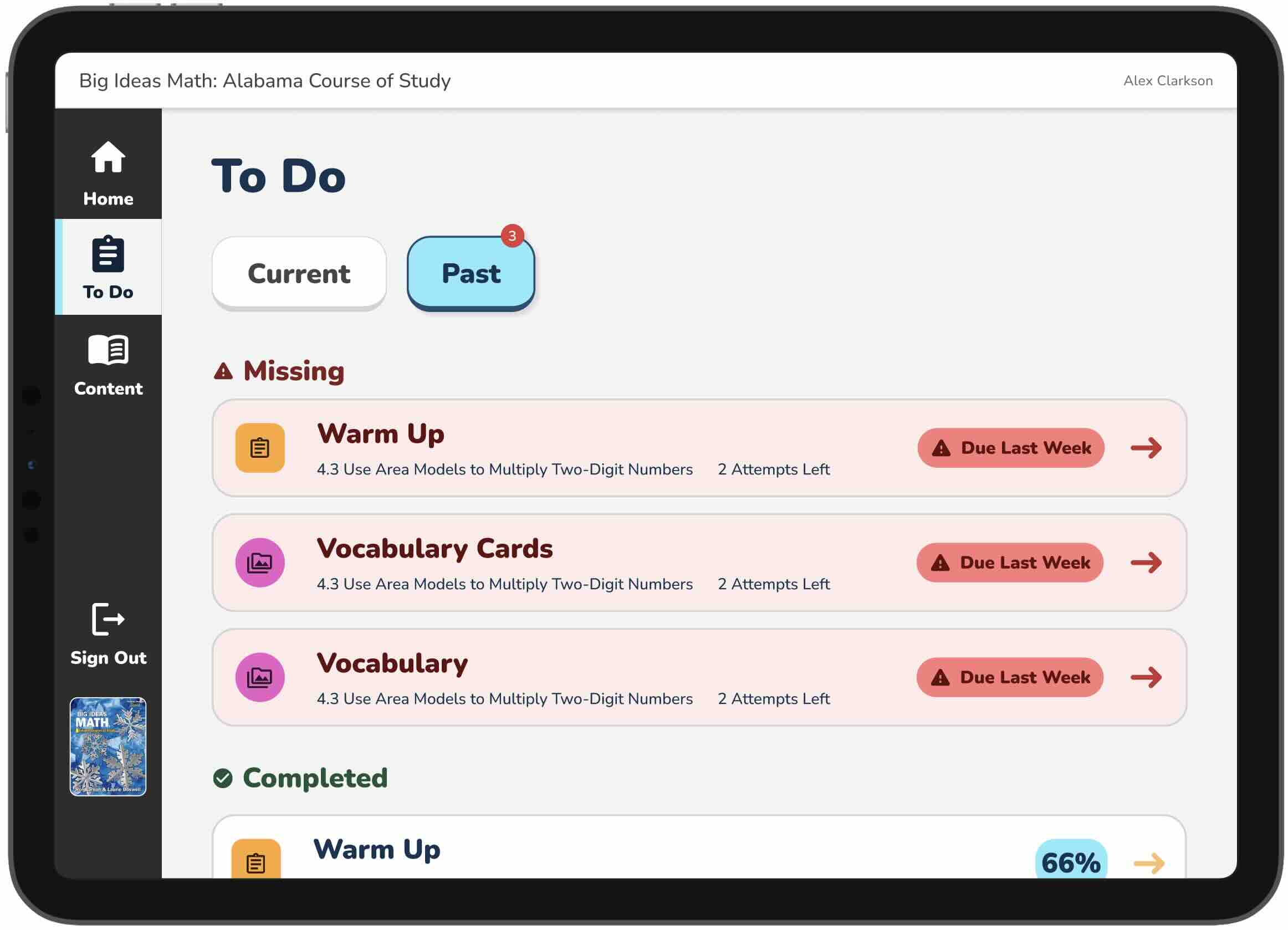
A separate Past tab allows students to review completed work and track missed assignments, without overwhelming the main view.
This design helps students:
-
Stay focused with clear task sections
-
Navigate comfortably on touch devices
-
Catch up on missed work without distraction
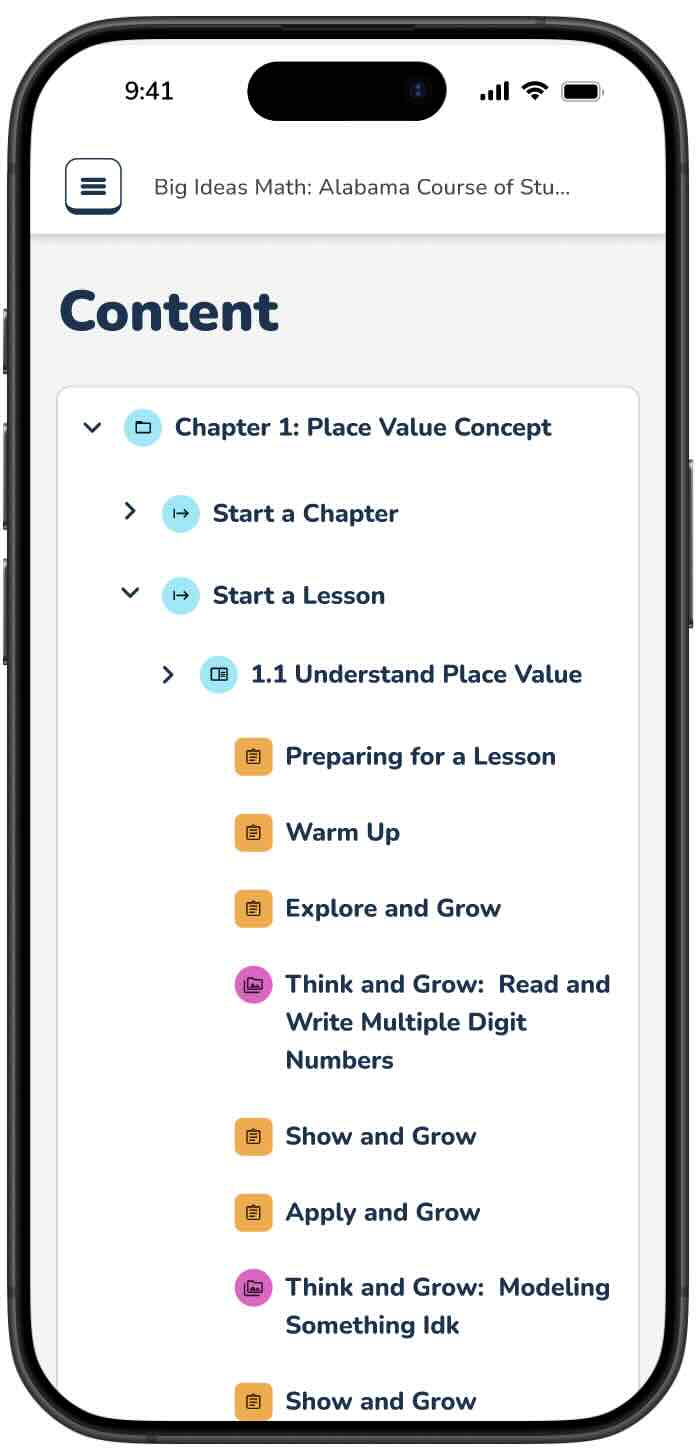
Content
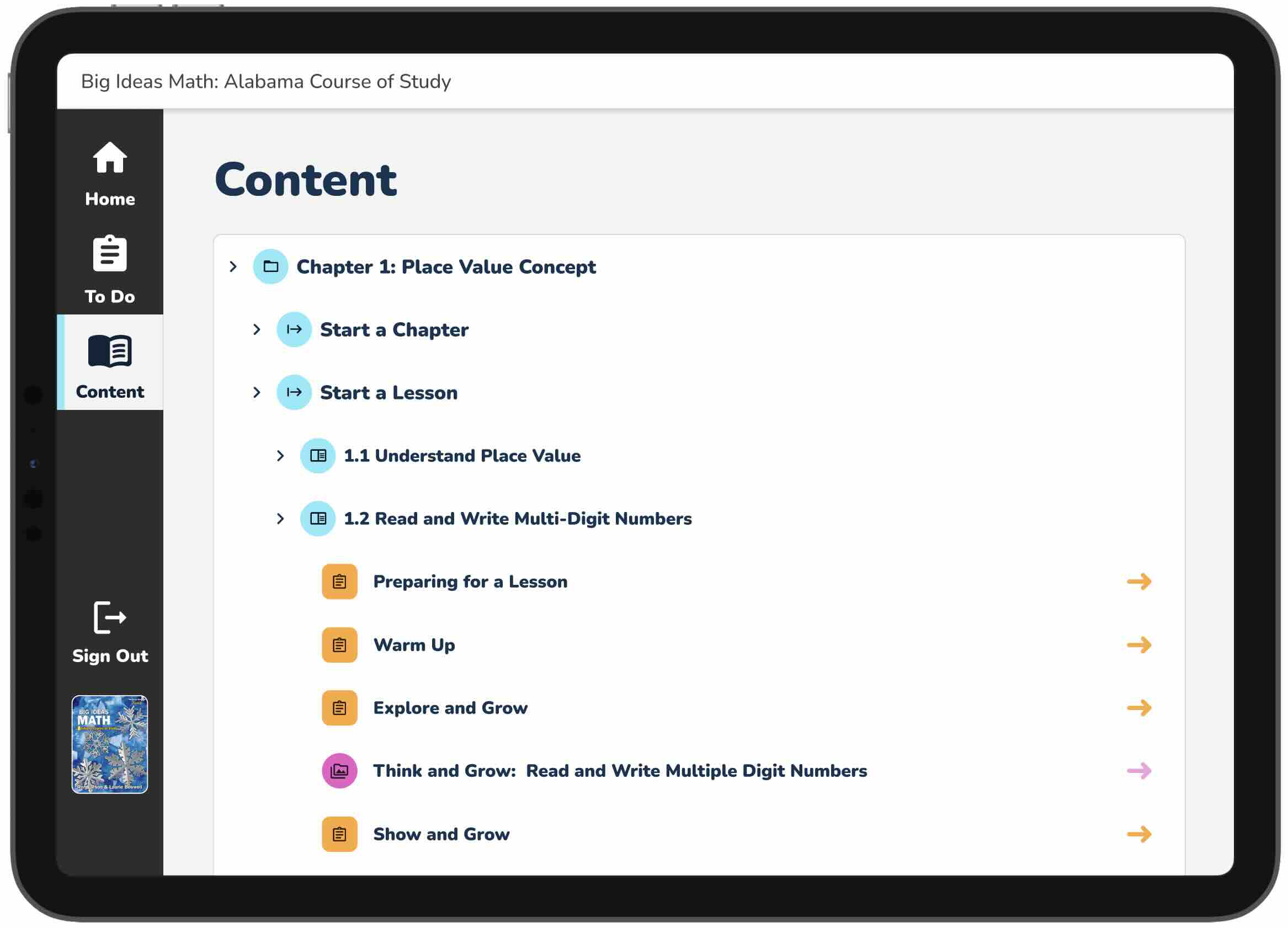
The Content page shows all textbook materials in a clear, student-friendly layout. Teachers can guide whole-class lessons, and students can explore on their own. Advanced students can access optional content. The simple structure supports flexible teaching and independent learning.
This layout also compliments the teacher view, making it easy for teachers to navigate in the student view.
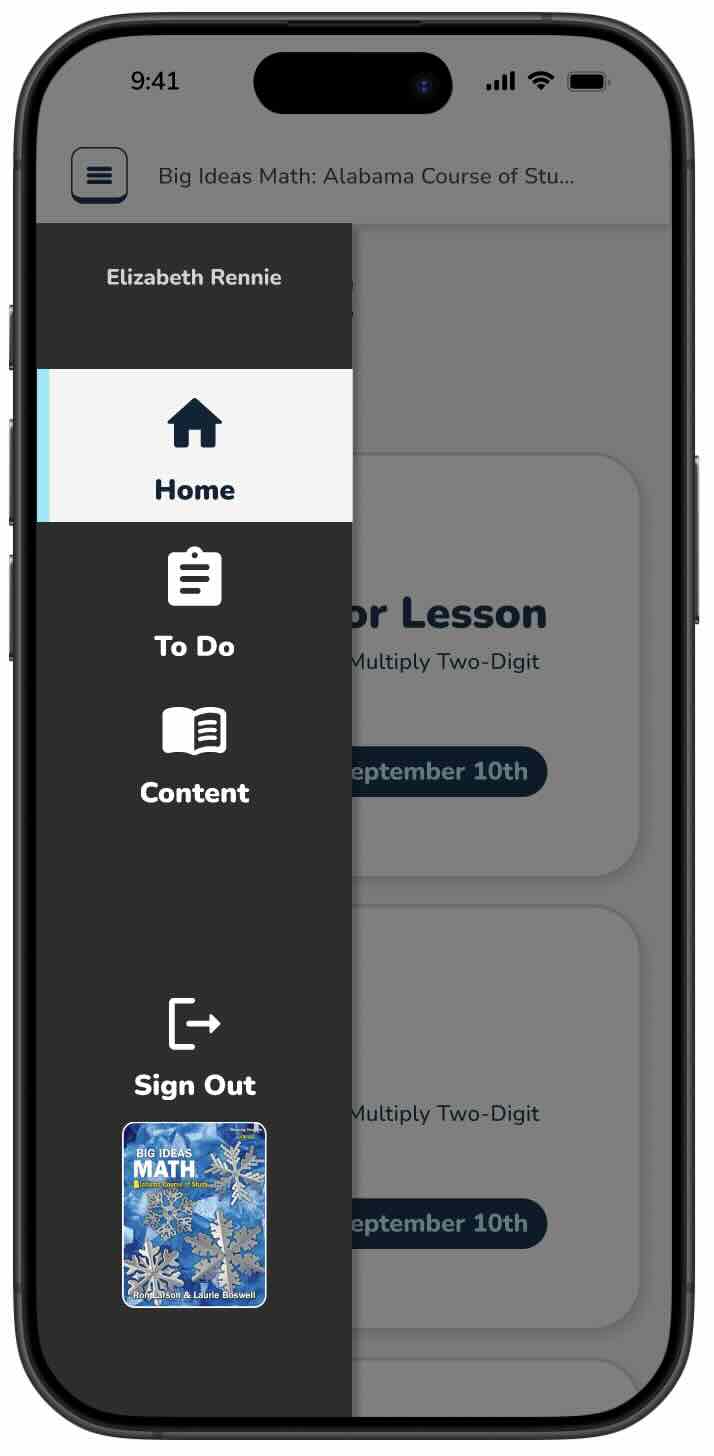
Responsive UI
And some fun interactions…
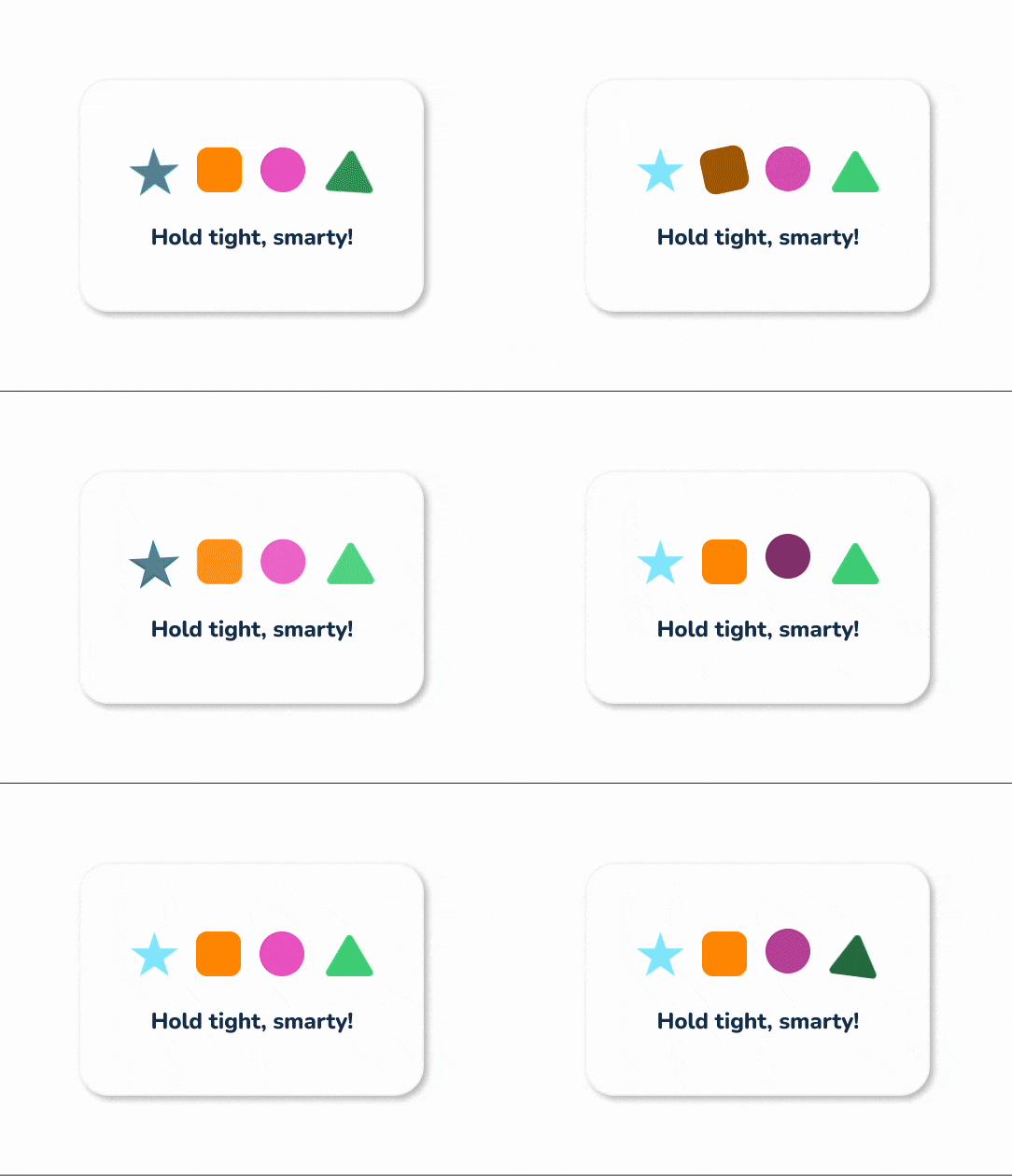
Loading Indicator
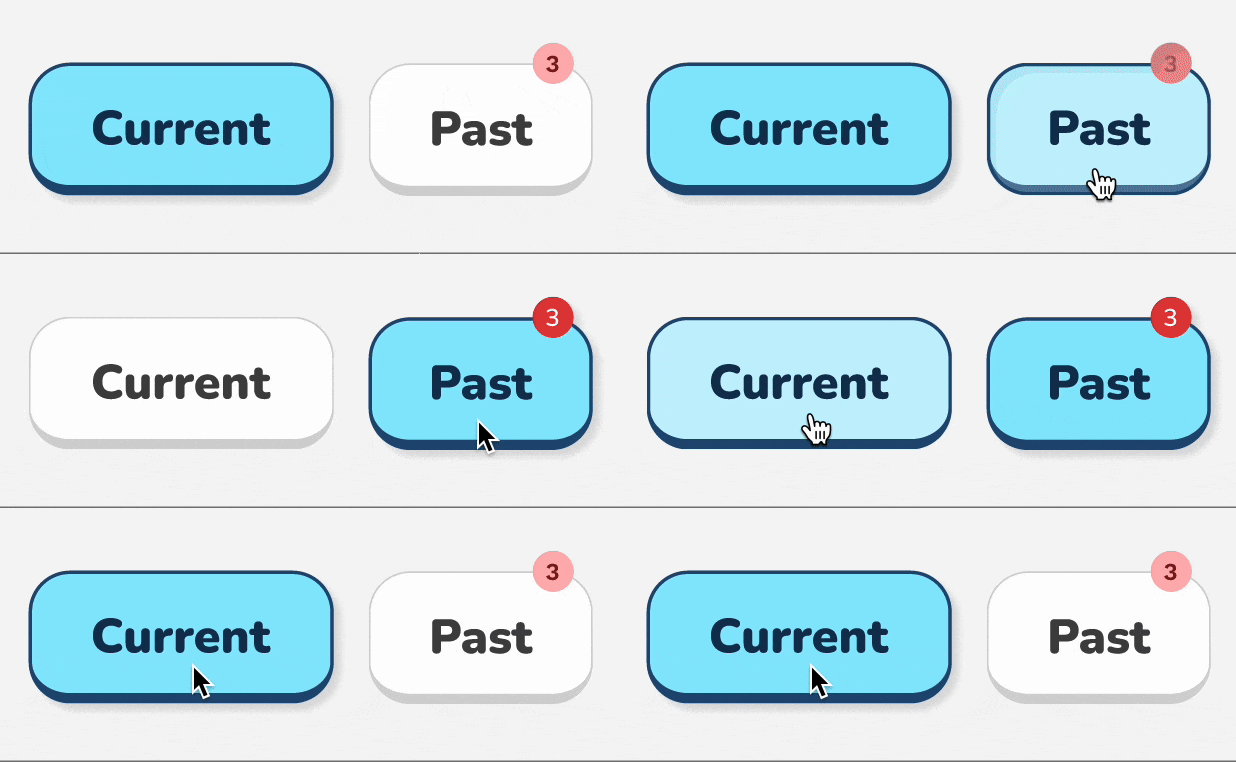
Tabs
Pressed & Hover States
📐 Research & Testing
Multiple rounds of moderated usability testing were conducted with K–5 teachers and student proxies using Figma prototypes. Research directly informed design refinements to better meet both teacher workflows and student developmental needs.
Goals:
-
Understand if the focused activity improves navigation for students
-
Uncover any more usability issues, misunderstandings, or improvements.
-
Uncover any information to help differentiate To Do and Home Page
Method:
1 on 1 prototype testing with Figma via Zoom
Sample: n=11
Teachers ranged from Kindergarten to 5th grade, teaching all subjects in their classes and using a wide variety of online tools.
📌 Key Findings & Iterations:
-
Validated simplified UI direction:
Teachers consistently confirmed the simplified design was more age-appropriate, easier to navigate, and better aligned with classroom instruction compared to previous versions. -
List-based navigation preferred:
The vertically stacked “plank” list enabled teachers to give simple verbal cues (e.g., “click the pink circle”), supporting non-readers and reducing cognitive load. -
Minimized in-activity navigation:
Limiting navigation options within activities helped keep students focused and reduced opportunities to get lost or click into unintended content. -
Shape + Color + Icon pairing effective:
Combining these visual identifiers allowed teachers to guide students with minimal reading dependency, improving classroom efficiency. -
To Do view aligned to 6–12 platform:
Testing supported using a simplified tabbed Current/Past structure, maintaining continuity with older grade levels while still developmentally appropriate for younger learners.
👧 Student Testing Highlights
For student testing, we focused on immediate reations, icon and label recognition, and what they thought they would click on first. Overall, feedback was highly positive.
Some quotes from young students:
“I think it’s actually… mine is way more confusing. But this one is more straight forward. There’s less random lines and dots everywhere. It’s just like… straightfoward.”
–9 year-old
“That’s more organized.”
–9 year-old
“I think it’s pretty cool that there’s different things to do, not just one thing.”
–7 year-old
Key Takeaways
- Even 5- and 6-year-old students were able to recognize key icons and simple words.
- A 9-year-old student preferred the small, focused list of assignments over the stream in Google Classroom.
- Students tend to work top to bottom in the UI unless directed otherwise.
⏳ Work Still In Progress:
This project is currently moving through final stages of development and review.
- Final development handoff in progress
- Accessibility (a11y) testing and refinement underway
- Iterative testing with live users
-